
Helix Teachers & HelixSchool User Guide
1. Introduction
Welcome to the official documentation for Helix Teachers and HelixSchool. This guide outlines the correct operation of the applications, best practices for digital classroom management, and steps to resolve common issues.
This guide is intended for:
- Teachers
- School Administrators
- Staff
- Students
Was this section helpful?
2. How Automatic Sessions Work
Helix operates on a unique Automatic Session System. Unlike traditional attendance apps, manual intervention is minimized.
Teacher Routine (Mandatory)
Teachers do not need to interact with the app during the class. You must only ensure the following before the class begins:
- Open the Helix Teachers app at least once.
- Ensure Bluetooth (BLE) is ON.
- Ensure Location (GPS) is ON.
- Ensure Internet is available.
- Ensure app permissions (Location, Bluetooth, Background Activity) are granted.
Was this section helpful?
3. Mandatory System Requirements
To ensure attendance is recorded accurately, all users (Teachers and Students) must strictly adhere to the following device settings. Non-compliance may result in attendance not being recorded.
✅ Required Settings (Must be ON at all times)
| Setting | Status | Reason |
|---|---|---|
| Bluetooth (BLE) | ON | Required for device handshaking and presence detection. |
| Location (GPS) | ON | Verifies the physical location of the classroom. |
| Background Data | Allowed | Ensures the app syncs data even when the phone is locked. |
| Battery Saver | OFF | App battery usage must be set to "Unrestricted". |
| Internet | Active | Continuous connection is preferred for real-time syncing. |
❌ Strictly Prohibited Actions
- DO NOT force close the app from the "Recent Apps" menu.
- DO NOT turn off Bluetooth or Location during class hours.
- DO NOT clear app data or cache during the day.
- DO NOT use extreme battery saver modes.
Was this section helpful?
4. Teacher App Guide
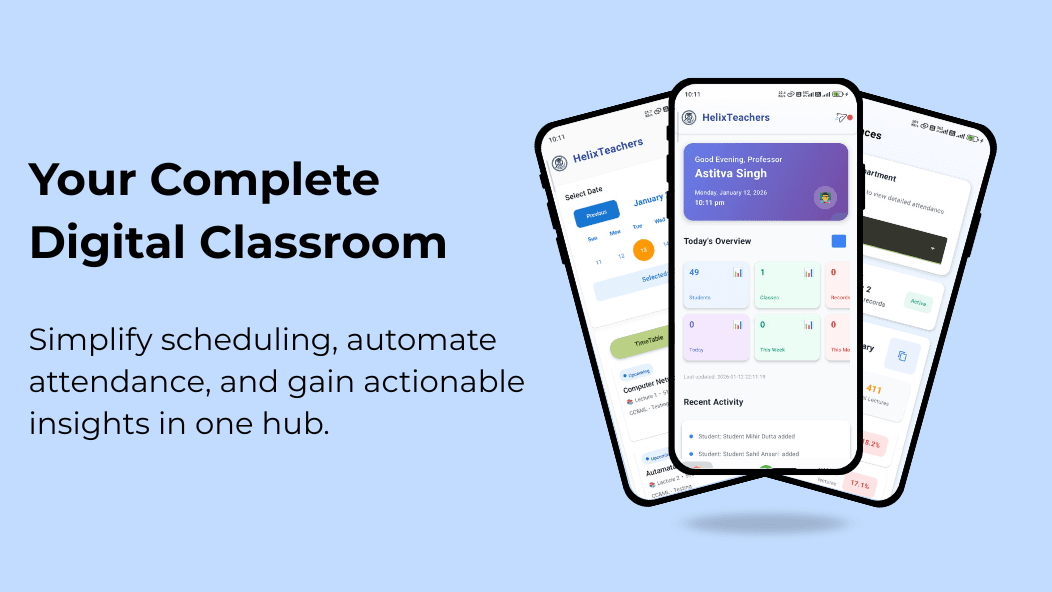
This section details the specific features available in the Helix Teachers app for faculty and administrators.
Schedule & Live Attendance
The Schedule Section
This screen displays all lectures assigned to the teacher:
- Past Lectures: History of previous classes.
- Current Lectures: Live classes currently in session.
- Upcoming Lectures: Future scheduled classes.
- Card Details: Each lecture card displays the Room Number, Class, and Section.
Live Attendance View
By tapping a Current Lecture, you enter the Live Attendance View.
- Availability: This view is only active during the lecture and for a 15-minute buffer period after the lecture ends.
- Visibility: See real-time counts for In-Campus, Present, and Absent students.
Manual Attendance Controls
Teachers can manually adjust attendance if a student's device fails.
- Press & Hold on a student's name.
- Select Pass to mark Present.
- Select Flag to mark Absent.
- Tip: You can multi-select students to update them in bulk.
After the 15-minute buffer period ends, attendance is automatically locked. Once locked, records are permanently saved and CANNOT be edited. This ensures data integrity and prevents manipulation.
Managing Users & Roles
Users Section
A complete directory of all Teachers and Administrators.
- Actions: View user details, edit contact info, change roles, or deactivate users.
- Note: Changes made here reflect immediately across the entire system.
Students Section
A directory of all enrolled students.
- Actions: View profiles, edit roll numbers, class, or section details.
- Best Practice: Regularly verify student data here to prevent attendance mismatches.
Roles Section
Designed for Admins to manage access control.
- Capabilities: Create custom roles, view existing roles, and edit permissions (e.g., who has the right to export data or edit user profiles).
Map & Data Export
Map Section
Displays the currently active geotagged area for the class or institution.
- Purpose: Visual reference only.
- Note: The timer does not exist in the Teachers app. It runs only on the Students app.
Copy to Clipboard
The Copy button allows teachers and admins to extract attendance data instantly.
- Format: The data is formatted specifically for easy pasting into Excel, Google Sheets, or Microsoft Word.
Was this section helpful?
5. Student App Guide
The Mandatory Timer Rule
For a student to be successfully marked Present, the timer in the Student App MUST start.
Student Checklist:
- Open the app before the lecture starts.
- Verify the timer is running.
- Allow the app to run in the background (do not force close it).
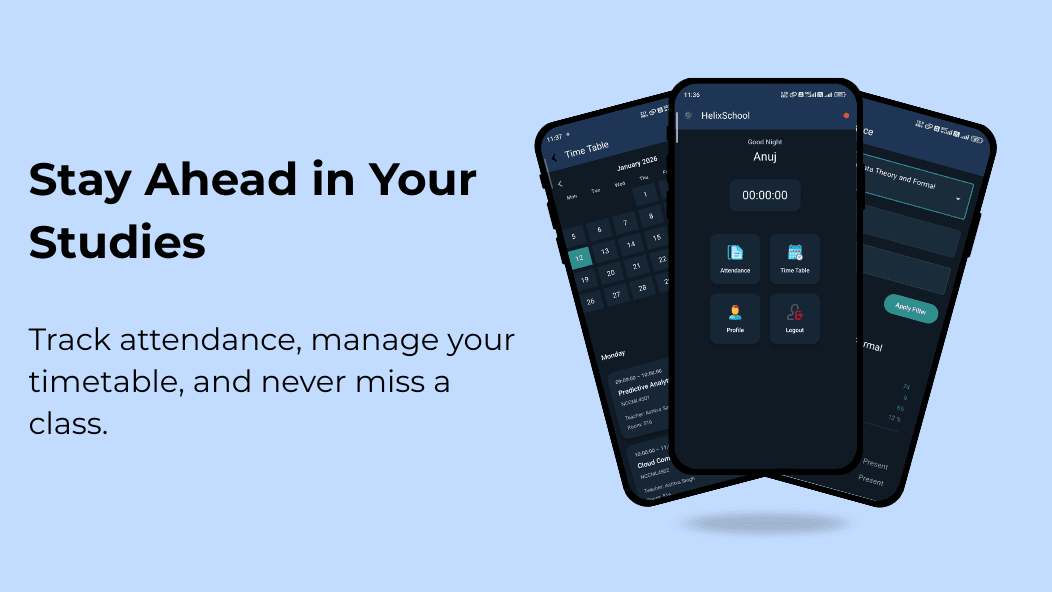
If the timer does not start, the student will NOT be marked present.
App Sections
- Attendance: View subject-wise breakdown or combined attendance stats.
- Timetable: Check the schedule for Current, Past, and Upcoming lectures.
- Profile: View personal/academic details and the Logout option.
Was this section helpful?
6. Troubleshooting & Maintenance
If the timer is frozen, attendance is not syncing, or the app is behaving erratically, follow these steps.
Common Issues Matrix
| Issue | Solution |
|---|---|
| Timer not moving | Restart app & clear background apps. |
| Session not ending | Ensure internet is active. |
| Attendance mismatch | Verify correct class/section details. |
| App slow | Restart the device. |
Frequently Asked Questions
Ensure Bluetooth (BLE) and Location (GPS) are enabled. Also verify that the app has all required permissions including background activity.
The app requires an internet connection for real-time syncing. Some data may be cached locally but will sync when connectivity is restored.
Common causes include: timer not running, app was force-closed, Bluetooth/Location was disabled, or you were outside the geotagged area.
Visit the Google Play Store, search for Helix, and tap Update if available. We recommend enabling auto-updates.
Mandatory Procedure: Timer Not Working
If the timer freezes, follow these steps strictly in order:
Open your phone's "Recent Apps" menu, force close the Helix app by swiping it away, then reopen the app. Ensure BLE and Location are ON.
Was this section helpful?
7. Support
Recommended Device Specs:
- Android Version: Android 10 or above.
- Maintenance: Keep the app updated to the latest version.
- Settings: Disable aggressive OEM battery optimizations (common on MIUI, ColorOS).
Contacting Support:
Please contact Helix Support only after trying the troubleshooting steps above. When reporting an issue, please provide:
- Device Model
- Android Version
- App Version
- Screenshots of the error (if possible)
Helixfjord Team : helixfjord@gmail.com
Empowering smart, reliable digital classrooms 🚀
Was this section helpful?